Contents
1. What it is for2. The base: the 13-week cash forecast3. Step-by-step useKPI boxes and the table4. Assumption types5. Payment, collection and postponement6. Discounting cheques and its cost7. Changing terms and speeding up collections8. Loan and credit line (overdraft)9. Order, the effect of each assumption and warnings10. Saving and sharing a scenario11. Permissions12. On the phone13. Frequently asked questionsHelp › Finance › Cash Simulation
Cash simulation (what if I pay this?)
The cash forecast for the next 13 weeks already exists in the reports. Cash Simulation puts a "what if I do this?" question on top of that forecast: making a large payment, postponing a supplier by two weeks, discounting customer cheques at the bank, taking a loan or using a credit line (overdraft). The program applies every assumption on the server, draws the base and the scenario side by side, and shows in which week cash falls below zero and what the financing costs. The simulation never opens a payment, cheque or loan record; it only saves the scenario itself if you want.
1. What it is for
- Seeing a payment decision in advance: the answer to "if I pay this 250,000 TL this week, will my cash go negative in week 6?" shows in red on the chart and in the weekly table.
- Comparing financing options: discounting cheques, taking a loan and using a credit line cost different amounts; the Financing cost box gives the total discount and interest of each scenario.
- Keeping and sharing a scenario: you save the set of assumptions you like under a name and share it with the company if you wish; when opened it is recalculated on that day's current forecast.
Where to open it. In the dock, the Finance / Bank group › Cash Simulation. The Try a scenario: what if I pay this? line in the cash box of the Owner Dashboard opens the same window.
2. The base: the 13-week cash forecast
The simulation's starting point (the base) is the same calculation as the 13-week cash forecast report in the Reports window; no separate forecast is made, so both screens show the same figure. The base contains:
- Opening cash: today's TL cash + bank balance ("opening cash … TL (cash + bank)" on the window's top strip).
- Inflows: the remaining amount of open sales invoices on their due day (Invoice collection), customer cheques and notes in the portfolio on their due date (Cheque and note collection), and customers' Promise to pay.
- Outflows: open purchase invoices (Invoice payment), company cheques and documents (Company cheque and document payment), Slip (payroll: the average of the last three months, at month end) and Tax (VAT) (on the due day set by the company country's obligation package).
Overdue items are not spread over weeks. Receivables and payables due before today (and bounced cheques) are put in no week and do not enter the cumulative figure, because nobody knows when they will be paid; their totals are written separately on the top strip as "Overdue receivables …, payables … (not spread over weeks)". To assume part of them will be collected, use the Speed up collections assumption.
The base is kept for 5 minutes per company, so an invoice entered a moment ago reaches the simulation within 5 minutes at most. The 13-week window starts today and lasts 91 days (today + 90 days is the last day); every week row is a 7-day slice counted from today.
3. Step-by-step use
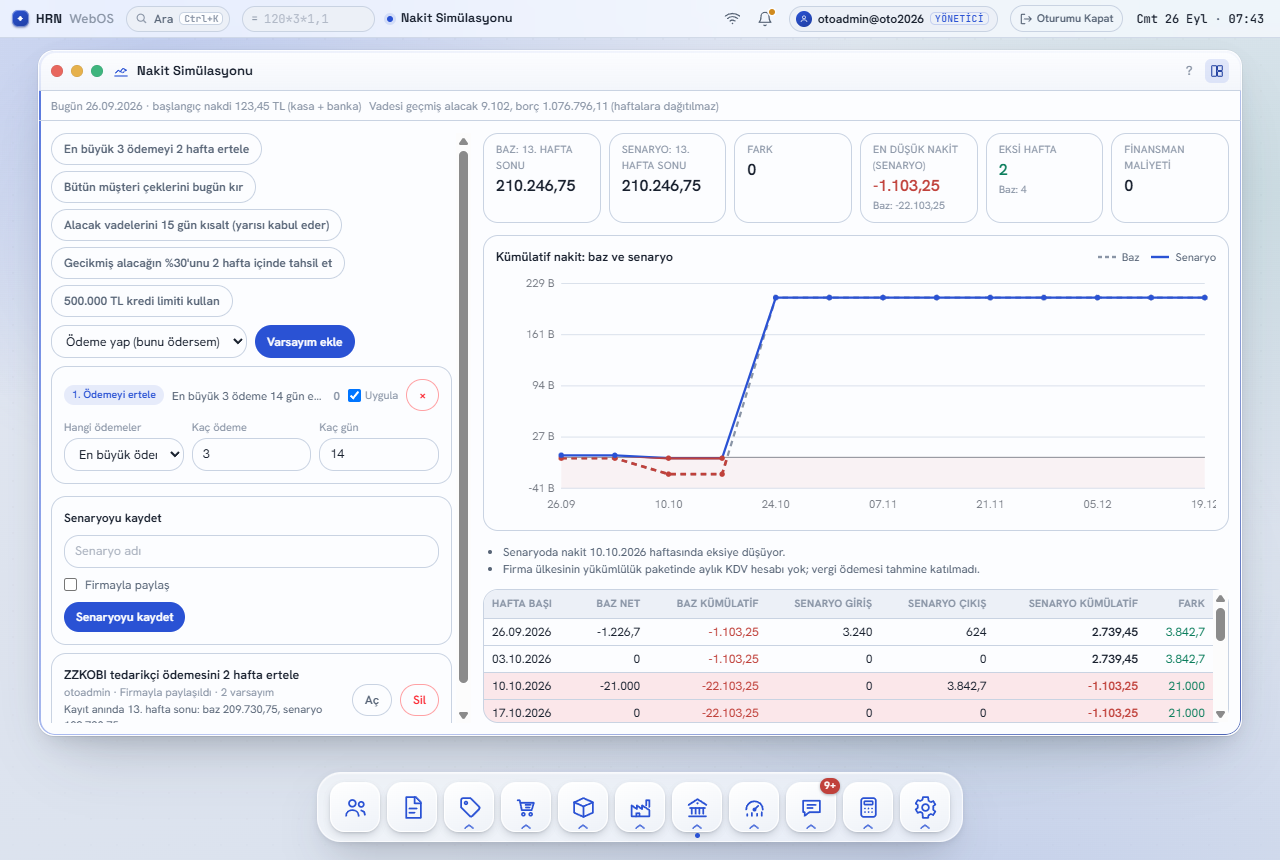
- Open the window. Ready-made scenario buttons sit at the top of the left column: Postpone the 3 largest payments by 2 weeks, Discount all customer cheques today, Shorten receivable terms by 15 days (half accept), Collect 30% of overdue receivables within 2 weeks, Use a 500,000 TL credit line. Pressing one adds that assumption to the list.
- For your own assumption, choose the type from the drop-down (Assumption type) and press Add assumption. Every assumption opens as a card; you change its fields (date, amount, days, rate…) inside the card.
- The calculation runs by itself: shortly after every change (the top strip shows "Calculating…") the right side refreshes. There is no separate "Calculate" button.
- Read the result on the right: six KPI boxes, the Cumulative cash: base and scenario chart (base dashed grey, scenario blue line; below zero shaded red), the warning lines and the weekly table.
- To switch an assumption off without deleting it, clear the Apply box on its card; to delete it completely press the × button. Save the set you like.
KPI boxes and the table
| Box | Meaning |
|---|---|
| Base: end of week 13 · Scenario: end of week 13 | The cash left at the end of the window, without and with the assumptions. |
| Difference | Scenario − base at the end of week 13. Green is an improvement, red a deterioration. |
| Lowest cash (scenario) | The lowest cumulative value within the 13 weeks; the base value is written below it. If it is negative, cash is not enough that week. |
| Negative weeks | The number of weeks in which the cumulative stays below zero (scenario); the base count is below it. |
| Financing cost | Cheque discount + loan interest + credit line interest in total; "Discounted cheques …" below it if any. |
The weekly table's columns are Week start, Base net, Cumulative base, Scenario inflow, Scenario outflow, Scenario cumulative and Difference. A week whose scenario cumulative is negative is shown on a red background. Money drawn from the credit line is included in the scenario inflow and repayments to the line in the outflow.
4. Assumption types
| Assumption | What it does |
|---|---|
| Make a payment (what if I pay this) | Adds a new outflow (Additional payment) on the chosen date. |
| Add collection | Adds a new inflow (Additional collection) on the chosen date. |
| Postpone payment | Moves the chosen payments N days later. |
| Discount cheques | Discounts customer cheques at the bank before their due date; brings the money in early and writes the discount cost. |
| Extend or shorten terms | Shifts the due dates of open customer or supplier invoices by the share the other side will accept. |
| Speed up collections | Collects a share of customer invoices early; puts a percentage of overdue receivables on a chosen date. |
| Take a loan | Writes an inflow on the drawdown date, the principal outflow at maturity and the interest. |
| Use credit line (overdraft) | Draws from the line by itself in a week when cash goes negative, repays when it turns positive, and charges weekly interest on the amount used. |
A scenario can hold at most 30 assumptions. Amounts are in TL; dates are calendar days.
5. Payment, collection and postponement
- Make a payment / Add collection: Date, Amount and an optional Description. Example: opening cash is 150,000 TL and you add a 250,000 TL payment in week 2; if the base has a net inflow of 30,000 TL that week, the cumulative becomes −70,000 instead of 180,000 and the row turns red.
- Postpone payment — the Which payments field offers four options: Largest payments (only from invoice and company document payments, the How many payments largest ones), Payments to one account (all payments of the chosen supplier), One payment type (Invoice payment, Company cheque and document payment, Slip or Tax (VAT)) and Payments I select (you tick them one by one in the list). They move later by How many days.
- Postponement applies only to outflows due after today and inside the window; an overdue payable is not postponed. If there is no suitable payment, the warning "Assumption N: no payment to postpone was found." appears.
A payment moved outside the window is not deleted. If you postpone a 400,000 TL payment in week 11 by 30 days, it leaves the 13 weeks and no longer shows on the chart. The program does not hide this: it writes the warning "400,000 TL of payments moved beyond the 13-week window. The amount still has to be paid."
6. Discounting cheques and its cost
Which cheques: All customer cheques or Up to a given amount. Only customer cheques that are due after the Discount date and have not bounced are discounted. With the amount option the program collects cheques starting from the earliest due one until it reaches the requested amount, splitting the last cheque if necessary to hit it exactly. If there are not enough cheques, a warning says the discountable amount is short of the request.
| Formula | Example |
|---|---|
| cost = cheque amount × annual rate × days / 360 (days = due date − discount date) | 100,000 TL, 60 days to maturity, 45% a year: 100,000 × 0.45 × 60 / 360 = 7,500 TL |
In the example, the cheque's 100,000 TL moves from the week of its due date to the week of the discount date, and in the same week the 7,500 TL discount is written as a separate outflow (Financing cost); the net effect is an early inflow of 92,500 TL. In the Annual discount rate % field, enter the annual rate your bank quotes.
7. Changing terms and speeding up collections
- Extend or shorten terms: if Direction is Receivable (customer), open sales invoices are affected; if Payable (supplier), open purchase invoices. Days (+ extend, − shorten) says how many days they move, and Acceptance rate % how much of each invoice moves to the new term (the other side may not accept all of it). Example: a 40,000 TL customer invoice due in 30 days, −15 days, 50% acceptance → 20,000 TL comes in after 15 days and 20,000 TL stays on the old due date. A shortened term never goes back before today; an amount pushed out of the window by an extension gets a separate warning.
- Speed up collections: there are two separate settings. How many days early and Covered share %: that share of customer invoices not yet due is collected that many days earlier (never before today). Collected from overdue receivables % and Overdue collection date: that percentage of the overdue receivables, which are not spread over weeks, counts as collected on the chosen date. Example: overdue receivables 80,000 TL, 30%, two weeks from now → 24,000 TL enters that week and 56,000 TL stays overdue. Bounced cheques are not part of this.
8. Loan and credit line (overdraft)
The fields of Take a loan: Drawdown date, Amount, Term (days), Annual interest % and Interest payment (At maturity or Monthly). The amount is an inflow on the drawdown day and the principal an outflow on the maturity day. Interest = principal × annual interest × days / 360. Example: 1,000,000 TL, 90 days, 45% a year → 112,500 TL interest in one go at maturity; with Monthly, 37,500 TL every 30 days (three times). The repayment of a loan whose term goes beyond 13 weeks does not show in the window; the cost box still shows the total interest.
The fields of Use credit line (overdraft) are Limit and Annual interest %. The program walks through the weeks in order: if the cumulative goes negative it draws from the line enough to cover the deficit (at most the remaining limit); while the cumulative is positive it repays the amount used. Each week, interest on the balance used = used × annual interest × 7 / 360, written to the next week's outflow. Example: limit 500,000 TL, 55%; week 4 cumulative −120,000 → 120,000 is drawn and the cumulative becomes 0; week 5 interest is 120,000 × 0.55 × 7 / 360 = 1,283.33 TL.
The credit line is always applied last. Because the line looks at the cumulative, it runs after all other assumptions, wherever it stands in the list. If you add several credit line assumptions only the first is applied ("Only the first credit line assumption was applied."). If the line is not enough you see "The credit line is not enough to cover the negative weeks."; if an amount is still in use at the end of week 13, "At the end of week 13, … TL of the credit line is in use."
9. Order, the effect of each assumption and warnings
- Order matters. Assumptions are applied in list order: if you first postpone the 3 largest payments and then "payments to one account", the second assumption sees the payments the first one moved, with their new dates.
- The effect of an assumption: each card's header shows that assumption's cash impact at the end of week 13 (green +, red −). The effect is incremental: assumptions are added one by one, so each figure is the difference it adds on top of the ones before it.
- An invalid field: if a field is invalid (e.g. no date, zero days) that assumption's card gets a red frame and the error sentence is written below; the result stays as it was until it is fixed.
- Warning lines sit below the chart: "In the scenario cash goes negative in the week of …", "The scenario covers the negative weeks in the base.", payments or collections moved out of the window, cheque and credit line warnings; plus the forecast report's own notes (e.g. that the company country's obligation package has no monthly VAT calculation, so tax payment was not included).
10. Saving and sharing a scenario
- In the left column, type a Scenario name in the Save scenario box (if left empty it is named "Scenario <date>") and press Save scenario. The record keeps the list of assumptions and the short result at that moment (base and scenario end of week 13, lowest cash, negative weeks, cost).
- If Share with company is ticked, everyone who can open the Cash Simulation window sees the scenario ("Shared with company" in the list); if not, only you and administrators see it ("Only me"). The box is visible only to users allowed to share.
- When you press Open on a scenario in the list, its assumptions are loaded and recalculated on today's base. The result at save time is written separately on the row ("End of week 13 at save time: base …, scenario …"), so you can see what has changed since then.
- For an open scenario the button becomes Update scenario; if you want a separate record from the same assumptions press Save as new scenario. Updating and Delete are available only to the scenario's owner and administrators.
11. Permissions
| Action | Requires |
|---|---|
| Opening the window, calculating scenarios | Administrator, or the Cash simulation and sharing scenarios with the company permission, or General Reports |
| Saving a scenario | Same as above; a read-only user cannot save ("A read-only user cannot save scenarios."). |
| Sharing with the company | Administrator or the cash simulation permission (General Reports alone is not enough). |
| Updating, deleting | The scenario's owner or an administrator. |
The permissions are in the Cash scenario, projects and price suggestion group of the permissions screen under Settings › Users.
12. On the phone
On screens smaller than 7 inches (the Garden + Steps interface) the window opens in three steps:
- Summary: the KPI boxes, the chart, the warnings and cards only for weeks that are negative or differ from the base (negative weeks in red). Edit assumptions at the bottom moves to the second step.
- Assumptions: the ready-made scenario buttons, adding by type and the cards; the fields are finger-sized.
- Saved: the save box and the list of saved scenarios (Open, Delete).

13. Frequently asked questions
| Question | Answer |
|---|---|
| Does a scenario open a real payment or loan record? | No. No account, cash, bank, cheque or loan entry is written; the only thing saved is the scenario itself. |
| Can the base differ from the 13-week forecast report? | The calculation is the same. A difference can only come from the 5-minute retention: a newly entered document reaches the base within 5 minutes at most. |
| Why is my 1 million TL of overdue receivables not on the chart? | Overdue items are not put into weeks because nobody knows when they will be paid (section 2). Enter your collection expectation with Speed up collections › the overdue receivables percentage. |
| Why are interest and discount calculated on 360 days? | It is the day basis banks use for cheque discounting and short-term loans, so the result comes close to the bank's figure. For the exact amount, check your bank's offer. |
| A scenario I open gives a different result from the day I saved it. | That is the intended behaviour: the scenario is recalculated with today's open invoices, cheques and cash balance. The result at save time is written separately in the list. |
| The VAT payment does not show in the forecast. | Tax comes from the monthly VAT calculation in the company country's obligation package. If the package has no such calculation, a warning line says so and tax is not included in the forecast. |
Related guides: Finance · Reports · Owner Dashboard · Late Payment Interest and Collections · Mobile.