Contents
1. What it is for and where to open it2. Step by step: the Suggest price tab3. Where the cost comes from4. Margin: gross margin and the target margin price5. Suggestion rules: the "Why this price?" chain6. The range bar and the basis7. Exchange rate scenario and quotation currency8. Price suggestion in quotation entry9. Margin targets10. Sales below the minimum margin go to approval11. Permissions12. On the phone13. Frequently asked questionsHelp › Prices and Campaigns › Price Suggestion
Quotation price suggestion assistant
When writing a quotation, a salesperson always asks the same question: "At what price should I give this product to this customer?" Price Suggestion answers it from the product's cost, the company's target profit margin, the price this customer last paid for the product, the product's recent sales, the price list and (if you enter it) the competitor's price. It does not just give a single figure: it draws a price range and writes step by step, under "Why this price?", how the suggestion was reached. A suggestion is only a suggestion; it changes neither the price list nor the document unless you accept it.
1. What it is for and where to open it
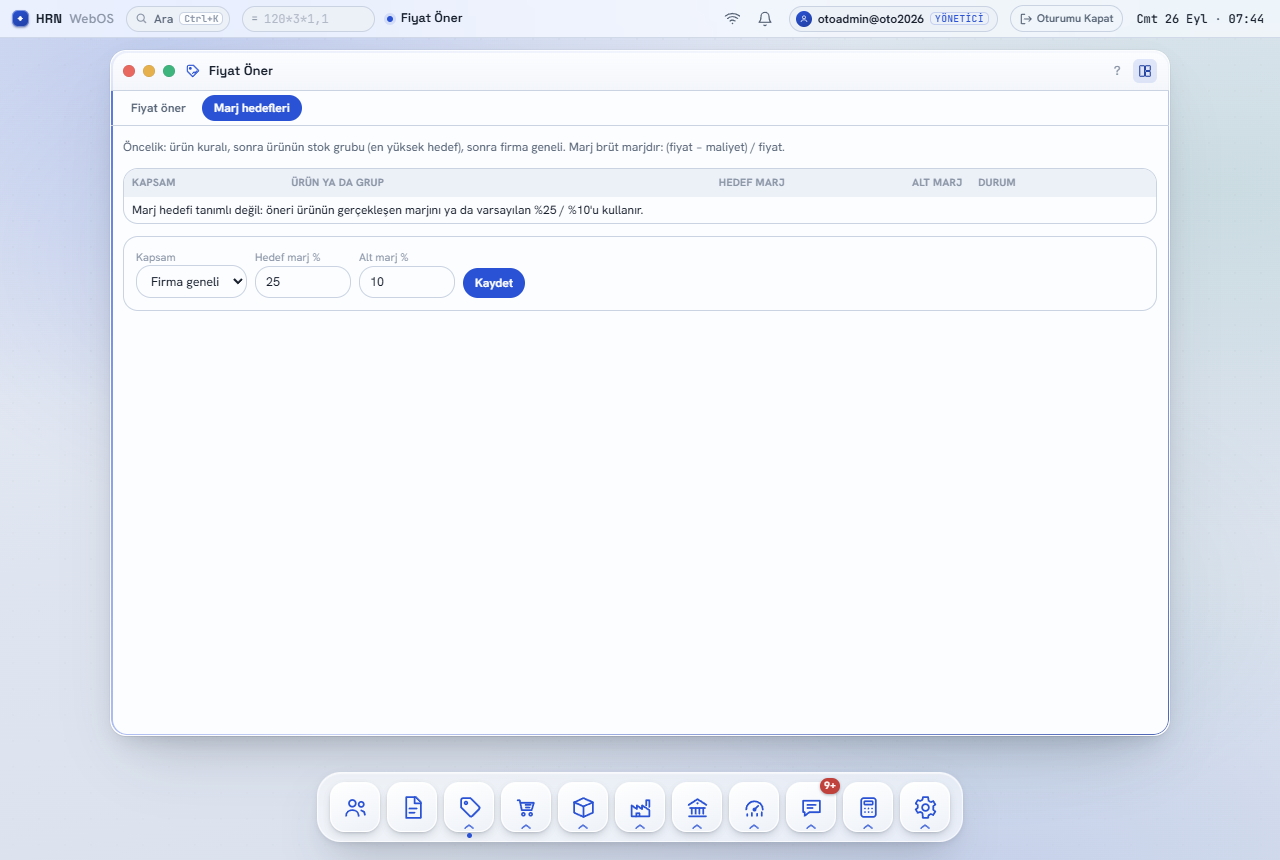
- The Price Suggestion window: in the dock, the Sales / CRM group › Price Suggestion (Fiyat Öner). It has two tabs: Suggest price (a suggestion for a product + customer) and Margin targets (target/minimum margin per company, stock group and product).
- In quotation entry: a Suggest price link appears under every line of a sales quotation; the same panel opens under the line and Acknowledge (Kabul et) writes the price to the line (section 8).
How it relates to the price engine. The suggestion assistant adds no new price source to the chain of the Prices and Campaigns engine; it only reads the list/campaign/agreement price and the floor price the engine finds for that customer and uses them for comparison. A price you accept counts as a "manually entered price" on the document; the engine does not overwrite it.
2. Step by step: the Suggest price tab
- Type the Stock Code or choose it from the stock list with the ••• button next to it.
- Choose the Customer (optional). Without a customer, "the customer's last price" and customer-specific list/agreement prices are not considered.
- Enter the Quantity (to find the right tier price if the price list has quantity tiers) and choose the Quotation currency (TL, USD, EUR, GBP).
- Press Suggest. The result panel opens below. The panel has three extra fields: Exchange rate scenario (USD:10,EUR:5), Competitor or benchmark price and Target margin % (empty = rule); after changing one, press Suggest again.
- Read the result: the large figure is the Suggested unit price (excl. VAT, after discount) and is for the product's base unit; next to it is the suggestion's Margin badge (red if below the minimum margin). Below are the range bar and the Why this price? and Basis boxes.

3. Where the cost comes from
The suggestion starts from the product's base-unit cost. The program checks these sources in order and uses the first one it finds; which one was used is written on the Basis › Cost row:
- Standard cost: the product's standard from the last approved period in the Standard Cost window.
- Last 12 months purchase average: if there is no standard, the average unit cost of the product's purchases in the last 12 months.
- Stock card cost: if there was no purchase in the last 12 months either, the cost on the stock card (a card cost more than 20 times the selling price is clearly wrong and is not used).
If none exists, no margin can be calculated: the warning "The product's cost is unknown; margin was not calculated, the suggestion is based on market prices only." appears and the suggestion starts from the customer's last price, the price list, the median of recent sales or the competitor price (the first one found, in that order).
Who sees the cost? The cost amount and the components of the standard cost are shown only to administrators and users with the price margin permission or a cost-viewing permission. Other salespeople see Hidden (no permission); the cost figure in the "Why this price?" line is hidden too, but the margin percentage and the suggested price stay visible.
4. Margin: gross margin and the target margin price
The margin on this screen is gross margin: margin = (price − cost) / price. It is not markup (a percentage added on top of cost). The price is found from the target margin as: price = cost / (1 − margin).
| Case | Calculation (cost 80 TL) |
|---|---|
| Target margin 25% | 80 / (1 − 0.25) = 106.67 TL → (106.67 − 80) / 106.67 = 25% |
| Minimum margin 10% (lower limit) | 80 / (1 − 0.10) = 88.89 TL |
| Comparison: 25% markup | 80 × 1.25 = 100 TL → margin only (100 − 80) / 100 = 20% |
The target and minimum margins come from the rule on the Margin targets tab. If there is no rule, the product's actual margin over the last 12 months is taken as the target (at least 5%, at most 80%) and the minimum margin is half of it; if that cannot be calculated either, the default is a 25% target and a 10% minimum. The "Target / minimum margin" row in Basis says which one was used: Product rule, Group rule, Company rule, Actual margin, Default or Entered manually (if you filled in the Target margin % field on the panel).
5. Suggestion rules: the "Why this price?" chain
The rules are applied in the order below; every rule that applies writes a line into the "Why this price?" list. The examples use a cost of 80 TL, a 25% target margin (106.67 TL) and a 10% minimum margin (88.89 TL).
| Rule | What it does | Example |
|---|---|---|
| 1. The agreement is binding | If the price engine finds a framework agreement price for this customer and product, that is the suggestion; the other rules are not applied and the margin is shown for information only. | Agreement price 99 → suggestion 99 (margin 19.19%). |
| 2. Starting point: the target margin price | The suggestion starts at cost / (1 − target margin). Without a cost it starts at a market price (section 3). | 106.67 |
| 3. The customer's last price | If the customer last bought this product at a price higher than the suggestion, the suggestion is raised to that price: it does not drop below a price the customer already knows on its own. | Last price 110 → suggestion 110. |
| 4. Competitor price | If the median of the competitor/benchmark prices you enter is more than 5% below the suggestion, the suggestion drops to the competitor price — but never below the lower limit. Because this rule comes after rule 3, it can also pull the price below the customer's last price. | Suggestion 110, competitor 100: 110 > 105 → suggestion 100. With a competitor at 85 → suggestion 88.89 and a "risk of loss" warning. |
| 5. Minimum margin limit | If the suggestion is below the lower limit, i.e. cost / (1 − minimum margin), it is raised to the lower limit. | If the start came from the market at 85 → 88.89. |
| 6. Price list floor | If the suggestion is below the price list's floor price it is not changed, but it is flagged. If the below-price sale rule is on and the suggestion is also below its threshold, the badge "If accepted, it goes to below-price approval" appears; without the rule only an information line is written. | Floor 95, threshold 2% → 93.10; suggestion 88.89 < 93.10 → goes to approval. |
If the suggestion is even below cost, a red warning says the suggested price is below cost, i.e. a sale at a loss. The result is rounded to 2 decimals.
6. The range bar and the basis
- Range bar: the left end is the Lower limit (red line; cost / (1 − minimum margin)), the middle label the Target (target margin price), and the right end the upper value: the largest of the target, the list price, the customer's last price, the highest recent sale and the suggestion. The blue marker is the Suggestion; when opened from a quotation line, an orange line shows the Entered price currently on the line. The green band is the acceptable range.
- Basis: Cost (amount and source), Target / minimum margin (and source), Customer's last price (with its date), Last N sales (median, minimum and maximum of the product's last 10 sales; returns excluded, at base-unit price), Price list (the engine's net price, floor and list name), Competitor price and Exchange rate scenario.
7. Exchange rate scenario and quotation currency
If part of the cost comes from material bought in foreign currency, a rise in the exchange rate increases the cost. In the Exchange rate scenario field you write currencies and percentage changes such as USD:10,EUR:5. The foreign-currency share is found component by component in a standard cost, and from the currencies of the product's purchases in the last 12 months for an actual cost; only that share is scaled: new cost = cost × (1 − foreign share) + cost × share × (1 + change).
| Example | Calculation |
|---|---|
Cost 80, USD share 60%, USD:10 | 80 × 0.40 + 80 × 0.60 × 1.10 = 32 + 52.80 = 84.80 (+4.80); with a 25% target the suggestion is 84.80 / 0.75 = 113.07 |
| Quotation currency USD, rate 40 | 106.67 TL / 40 = 2.67 USD |
The calculation is always done in TL and converted to the quotation currency at the very end. In the Price Suggestion window the rate is the CBRT selling rate; when opened from a quotation line, the quotation document's rate is used. If no rate is found, an error says the rate was not found.
8. Price suggestion in quotation entry
- In Quotation Entry, with the transaction set to Sales, choose the account and add a line. A Suggest price link appears under the line.
- Pressing the link opens the panel under the line; the customer, quantity, currency and rate come automatically from the quotation header. You close the panel with Hide suggestion or ×.
- Pressing Acknowledge (Kabul et) writes the unit price so that the line's net price equals the suggestion; the line discount is kept. Example: suggestion 90 TL, line discount 10% → a unit price of 90 / 0.90 = 100 TL is written and the net becomes 90 TL.
The suggestion is a base-unit price. If the line's unit differs from the product's base unit (e.g. base unit piece, line in boxes) the panel warns you and the Acknowledge button does not appear: first convert the line's unit to the base unit. An accepted price counts as a manual price, so the price engine does not change it later.

9. Margin targets
On the Margin targets tab each rule has a Scope (Company-wide, Stock group or Product), a Group name or Stock Code, a Target margin % and a Minimum margin %. The margin must be a percentage between −50 and 95 and the minimum margin cannot be greater than the target; if the minimum is left empty, half of the target is used. Saving a second time for the same scope and value updates the existing rule. You can switch a rule off without deleting it with Deactivate.
Priority: product › stock group › company-wide. If there is a product rule, it applies. Otherwise, among the rules of the stock groups the product belongs to, the one with the highest target is chosen. Failing that, the company-wide rule. Example: company-wide 20%/8%, group "PIPES" 30%/12%, group "CONSTRUCTION" 25%/10%; for a product in both groups 30%/12% applies. If you write a 35%/15% product rule for the same product, it wins.
10. Sales below the minimum margin go to approval
Margin targets are not only for suggestions. When a sales document is saved, if a line's net price (excl. VAT, after discount, in TL, per base unit) is below the product's lower limit — cost / (1 − minimum margin) — those lines go to the same approval queue as below-price sale lines; the approval request's description says "minimum margin" with the product code, the net price and the lower limit. Example: cost 80, minimum margin 10% → lower limit 88.89; a line sold at 85 TL goes to approval.
- When does it run? While the below-price sale rule is on under Management › Approvals › Approval rules, the price engine is active (at least one active list or campaign) and there is at least one active margin target with a minimum margin above zero. If the document already went to approval for being below price, no second request is opened.
- Does it block the document? No. The document is saved normally; the approval request is opened right after saving and is approved or rejected in Management › Approvals. Here too the cost is the standard cost, or else the actual cost of the last 12 months.
11. Permissions
| Action | Requires |
|---|---|
| Opening the window, getting a suggestion | Administrator, or a quotation, order, invoice or stock permission, or Margin targets and seeing cost in suggestions. A user restricted from seeing prices in orders is told "You are not allowed to see prices." |
| Seeing the cost amount | Administrator, the margin targets permission or a cost-viewing permission; otherwise Hidden (no permission). |
| Adding, changing, deleting margin targets | Administrator or Margin targets and seeing cost in suggestions; a read-only user cannot write. |
The permission is in the Cash scenario, projects and price suggestion group of the permissions screen under Settings › Users.
12. On the phone
On screens smaller than 7 inches (the Garden + Steps interface) Price Suggestion is a three-step wizard for the salesperson in the field:
- Product: stock code, customer and quantity; Continue.
- Scenario: competitor or benchmark price and exchange rate scenario (both optional); Suggest.
- Suggestion: the same result panel; Acknowledge copies the price to the clipboard ("Price copied to the clipboard."), and Open Quotation Entry opens the quotation window.

13. Frequently asked questions
| Question | Answer |
|---|---|
| Does the suggestion change my price list? | No. List, campaign and agreement prices are only read; the suggestion is written to a document line only when you accept it. |
| Why did it go below the customer's old price? | If the competitor price you entered is more than 5% below the suggestion, the competitor rule (section 5, rule 4) can pull the price below the customer's last price too; it never pulls it below the minimum margin limit. |
| What does the "no margin target defined" warning mean? | There is no product, group or company-wide rule for the product. The suggestion used the product's actual margin or the default 25% / 10%. Define a rule on the Margin targets tab for a lasting target. |
| Why is there no Acknowledge button? | The line's unit differs from the product's base unit; the suggestion is a base-unit price. Convert the unit to the base unit, or convert the suggestion yourself. |
| Can my salespeople use suggestions without seeing the cost? | Yes. Without a cost-viewing permission the cost amount is hidden, while the suggested price, the range and the margin percentage are visible. |
Related guides: Prices and Campaigns · Document Entry · Standard Cost · Framework Agreements · Mobile.